unpitchdocs
Workspace and team

Projects

Group the documents you are drafting and testing into a folder, file existing documents into it, and rename or delete it safely.

Once you have written more than a handful of messages, the flat list stops helping. A project is a folder inside your workspace that groups documents belonging to one campaign, one client or one experiment. Projects are optional. A document does not need one, and nothing about how it is checked or simulated changes when it has one.

Creating a project

There is no separate projects screen. The Projects tree in the sidebar is the list, and everything starts there.

Hover the Projects heading in the sidebar. A small New project button appears beside it.

In the New project dialog, type a name. The field shows Q2 Outreach as a placeholder, which is an example rather than a default, so an empty field stays empty.

Optionally fill in Description (optional), placeholder What's this project about?, up to 500 characters. It appears under the project name on the project's own page.

Press Create. The button reads Creating… and the dialog stays open until the new project's page has actually loaded, then a Project created toast confirms it.

The project page

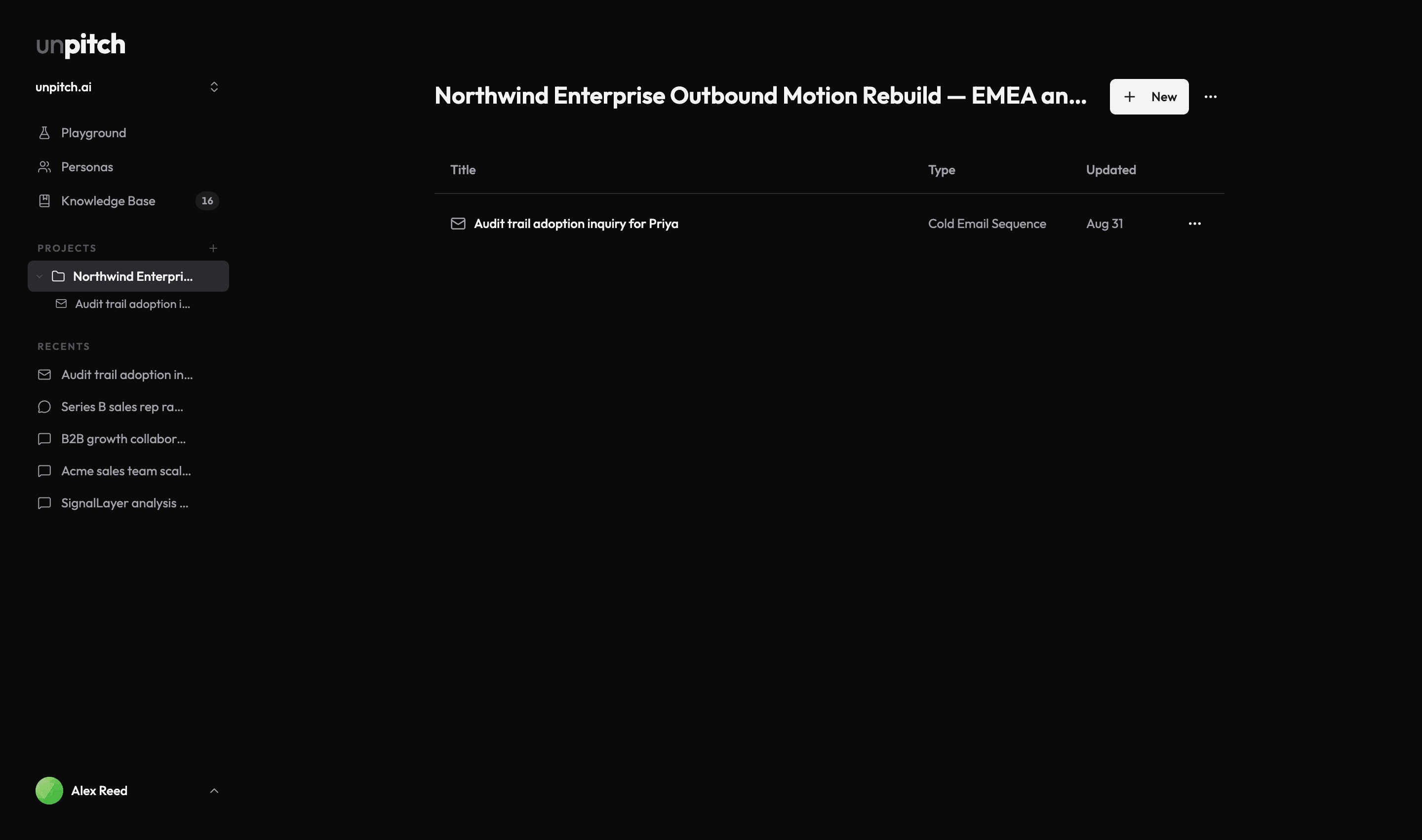
You land on the project straight after creating it, and you can return to it any time from its sidebar row. The page shows the name, the description if you wrote one, a New button, and a menu.

A brand new project shows a card reading Nothing here yet with the line "Click + New above to start writing." Once documents are filed here, the card is replaced by a table with three columns: Title, Type and Updated. The last two are hidden on narrow screens. A READY chip beside a title means that document's current text is exactly what you marked as ready to send.

Rows load in pages as you scroll. When everything has loaded, a line under the table reads, for example, "All 12 documents", so you know you have reached the end.

A project page showing its Title, Type and Updated table, the New button and the project actions menu in the header

Archived documents are left out of the table. A project can therefore look empty while still holding archived documents, which is worth remembering before you conclude that something was lost.

Filing documents into a project

There are two ways in.

Press New on the project page and pick a document type from the dropdown. The document is created already filed under this project.

To move a document you already have, open its menu anywhere it is listed and choose Move to project. Pick the project and press Move, and a Moved to project toast confirms it. The first option in the same picker is No project, which makes the document standalone again and reports Removed from project.

Filing a document is what puts it in the sidebar tree. A standalone document never shows up under Projects, only under Recents, which is the usual explanation for a document you cannot find in the tree.

Renaming and deleting

Both live in the menu, on the project page and on the project's sidebar row.

Rename project opens a dialog holding the name field, which takes up to 120 characters. Save it and a Renamed toast confirms it.

Delete asks you to confirm first. The confirmation says it will permanently delete the project and that the action cannot be undone, then a Project deleted toast confirms it.

Deleting a project does not delete the documents inside it, despite what the confirmation wording suggests. Those documents become standalone: they leave the project tree, and you reach them from Recents and your document list exactly as before. Deleting a project throws away the folder, not the work.

When a project will not open

A project link that is unknown, deleted, or not yours shows a screen headed Project not found with the line "This project may have been deleted or moved to another workspace." and a Go home button. The wording deliberately does not distinguish between a project that is gone and one that was never yours to see.

If the project belongs to a different workspace that you can reach, there is no error at all. The app switches your active workspace to that project's workspace and opens the project, so the workspace name, the project tree and the sidebar all change underneath you. That is expected, not a fault.

Creating, renaming and deleting projects needs owner or admin rights in the organisation that owns the workspace. On your own account you are the owner, so this only comes up if you have joined someone else's organisation as a member, where the attempt fails with You don't have permission to do that. or That doesn't exist or you can't access it.