Personal settings
Change your name, avatar and email address, manage how you sign in, choose your theme, and delete your account if you want to leave.
Open the account menu at the bottom of the sidebar and choose Personal settings. Profile and sign-in settings follow your account across workspaces. Your theme is remembered in this browser. Invitations are in the workspace menu instead.
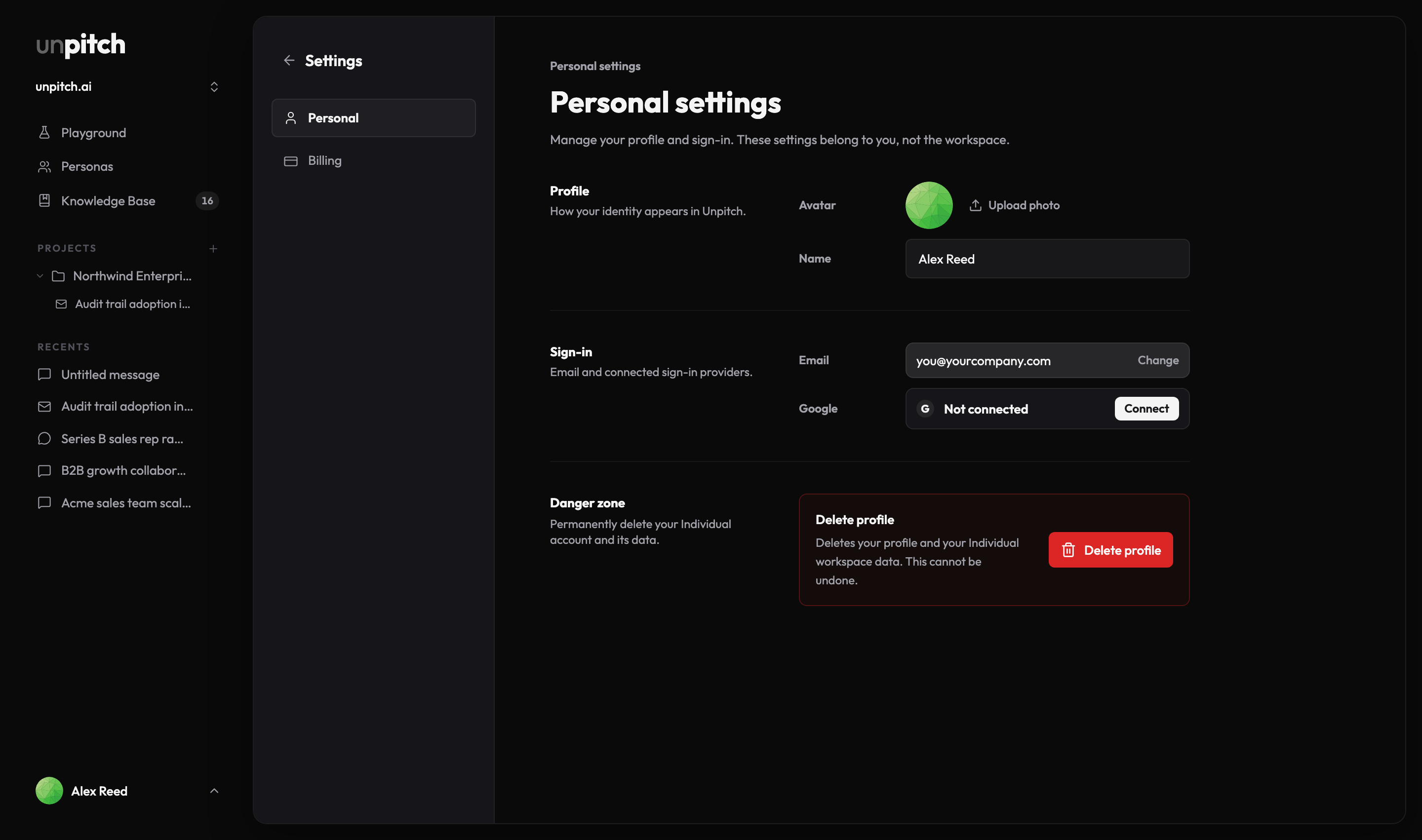
Your name saves when you press Enter or leave the field. If saving fails, the field returns to the last saved name. Avatar, email, and Google changes use their own controls.
Your avatar and name
Until you upload a photo, unpitch shows a generated avatar. Choose Upload photo to replace it. The upload applies immediately. Choose Remove to return to the generated avatar.
Use a PNG, JPEG, or WebP file no larger than 2 MB.
Your name is what other people see next to your work.
Your email address and sign-in
The Sign-in section covers your email address and connected sign-in providers.
To change your email, choose Change, enter the new address, and send the confirmation links. You must confirm from both the current and new inbox. Until both confirmations finish, the old address remains active.
The Google row shows whether Google sign-in is connected. If Google is your only sign-in method, add another method before disconnecting it.
Your theme
Under Preferences, choose Dark, Light, or System. The appearance changes immediately; there is no Save button. System follows your operating system's appearance.
The app starts in Dark until you choose a preference. Your choice is remembered in this browser across workspaces, including setup screens. It does not change the public site's theme.
Deleting your account
Delete profile permanently removes your profile and your individual workspace data, including projects, documents, Knowledge Base items, personas, and run results. Unused credits are forfeited. Required billing records may remain, and backup copies expire within 30 days.
Scroll to Danger zone and press Delete profile.
Read the consequences in the Delete your profile? dialog.
Type your email address exactly. If the dialog shows a separate acknowledgement for purchased credits, select it too.
Press Delete profile. After deletion, the app returns to sign-in.
If the screen will not load
If a settings tab shows Couldn't load settings, choose Try again. Refresh the page if the same error returns.